Turn on suggestions
Auto-suggest helps you quickly narrow down your search results by suggesting possible matches as you type.
- Sinch Community
- Account Management
- Build Dashboard
- Accessing your Projects in the Sinch Build Dashboard
Options
- Subscribe to RSS Feed
- Mark as New
- Mark as Read
- Bookmark
- Subscribe
- Printer Friendly Page
- Report Inappropriate Content
A Project is the primary container for your Sinch resources. Every Sinch Account is created with at least one default project, which serves as the hub for your apps, phone numbers, and product configurations. Learn more about Projects.
To access your projects, log in to the Sinch Build Dashboard, click the Project menu at the top left of the screen:

This Project top menu allows you to easily access all your projects. If you have multiple projects then you can search for your project or the project ID in the search field at the top of the project list.
Your current project is highlighted (in yellow and with a tick mark). If you click the options icon (three vertical dots) to the right of the current project name, you can see all the details of your project:

See the Project Details section below to learn more.
To manage your projects or to add a new project, click View all projects. The Projects page is displayed.
Note: If you are unable to view and manage your projects - please reach out to your Sinch Account Manager or contact our Online Team.
Managing Projects
The Projects page is used to manage your projects:

The Projects page allows you to:
- View you all your existing projects and PROJECT IDs and information about when the projects were created
- See the details for each project
- Switch between your projects
- Create new projects.
Viewing Project Details
To view all the details of your project, click the options icon (three vertical dots highlighted in red above) corresponding to the project you are interested in:
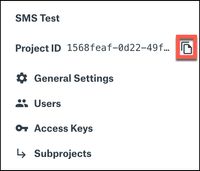
The project details panel contains the following information and options:
| Project ID |
Displays the Project ID. To copy the Project ID to your clipboard, click the copy icon |
| General Settings | Configure the project settings including changing the project name. |
| Users | View the list of existing users for your selected project and invite new users. |
| Access keys | Shows you the access keys for your selected project. Learn more about access keys and how Sinch uses them. |
| Subprojects | Displays the Subprojects page , which allows you to view the subprojects for your current project and to create additional subprojects. Refer to the What is a subproject article to learn more. |

Switching to another project
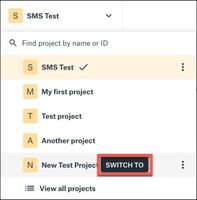
Switching projects changes which resources are displayed across all products, showing only those linked to the selected project. To switch to another project, click the SWITCH TO button corresponding to the project you want to switch to:

For example, if you wanted to switch to the project “Another project”, click the corresponding SWITCH TO button.
Alternatively to can use the project top menu, and select the SWITCH TO button corresponding to the project you want to switch to:
Creating a new project
Important Note: Project or subproject creation is not enabled by default for all customers. If you are self-serve customer who created their account via the Build Dashboard and your Account Manager is listed as [email protected] then you will not be able to create projects or subprojects. In this case if you need to create a project or subproject please reach out to [email protected] who can discuss adding a project on your behalf.
To create a new project, refer to the article Creating a new project.
Related Articles:
Options
- Mark as New
- Bookmark
- Subscribe
- Mute
- Subscribe to RSS Feed
- Permalink
- Report Inappropriate Content
Featured Article

 Shahzad_Ismail
Community Manager
Sinch has a new single sign-on login experience that will allow you to seamlessly login to any existing Sinch services that you may use - Learn more about Sinch ID.