Comments are a powerful tool for providing feedback and fostering collaboration on your bot canvas.
🎥You prefer to watch a quick hands-on tutorial? Check out our new bot builder video tutorial!
Add a comment
To add a comment to your canvas:
1. Enable the comment mode by clicking on the Comment icon in the top right menu of the screen.
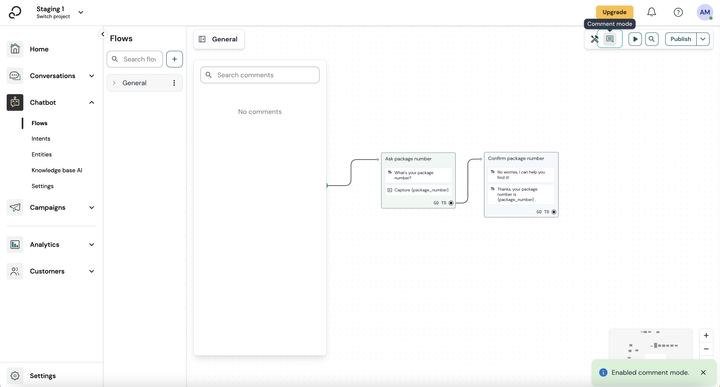
2. Choose the specific location on your canvas, then ‘right-click’ on your cursor to add comment.
3. Type your comments in the comment field provided.
4. Press the 'enter' key on your keyboard to submit your comment.
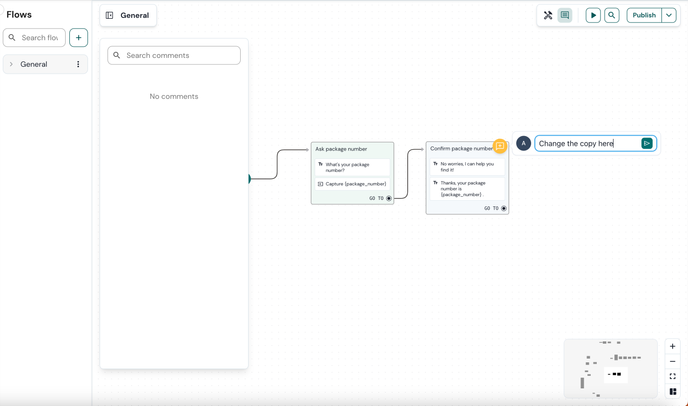
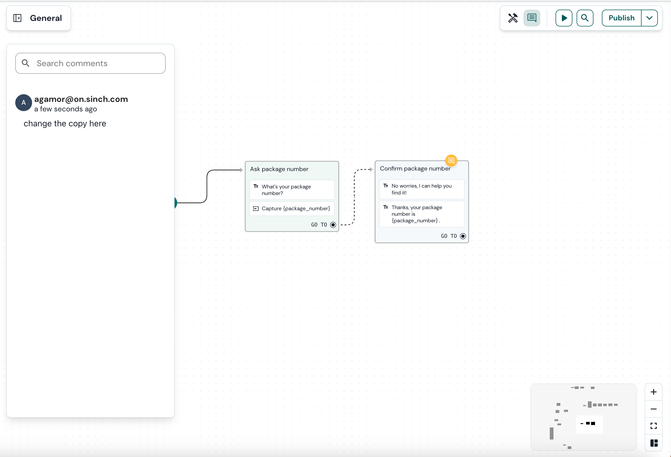
5. You will see the comment in the comment section on the left.
Reply to a comment
To reply to a comment:
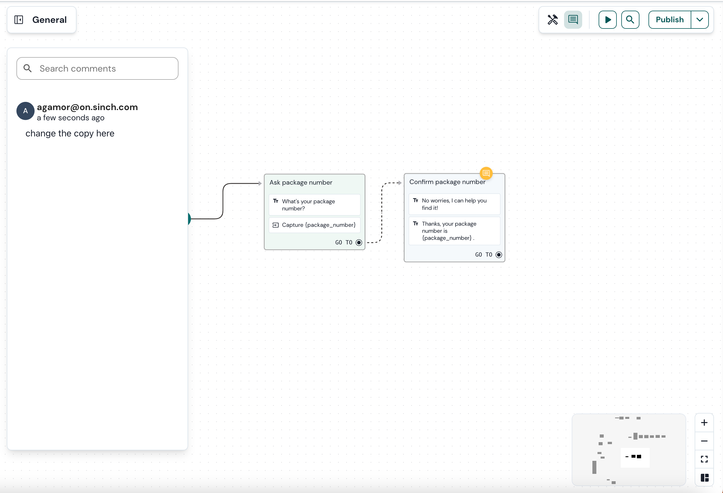
1. Double click on the comment.
2. Click on the Reply field below the comment.
3. Press the 'enter' key on your keyboard to submit your reply.
Resolve comment
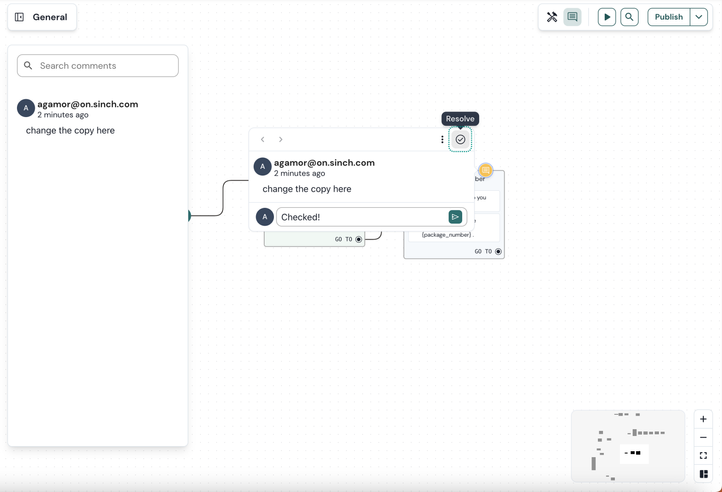
To mark your comment as resolved:
- Double-click the comment to view it.
- On the left side of the modal, click the checked-mark button.
- The comment will disappear, indicating that it has been marked as resolved.
Delete a comment
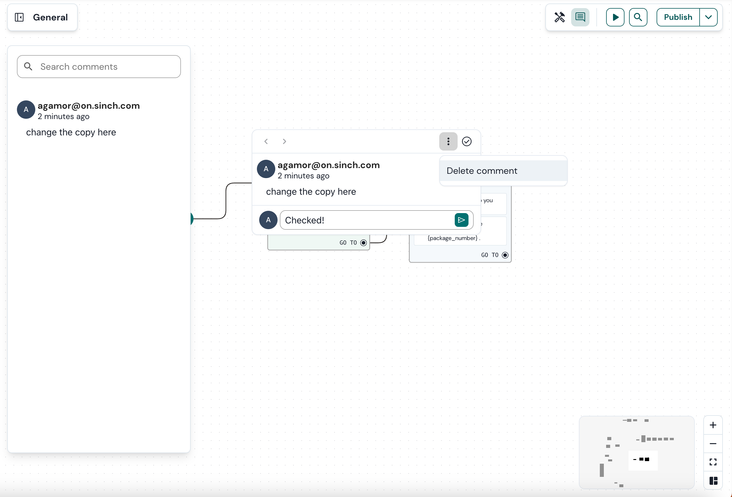
To delete a comment:
- Make sure that you’re in commenting mode by clicking the ‘comment’ icon on the right top menu.
- Choose the comment that you want to delete by clicking on it.
- Click the three dots button.
- Choose Delete comment.
See also:
[New bot builder] Canvas overview
[New bot builder] Navigate your canvas
Chatbot design workflow
