Passkey enrolment happens during sign-in. After you sign in with your password, Sinch ID asks if you want to save a passkey to your device. You can skip or dismiss the prompt and enrol next time.
To enrol a passkey during sign-in process, take the following steps:
- Go to the Sinch ID sign-in page:
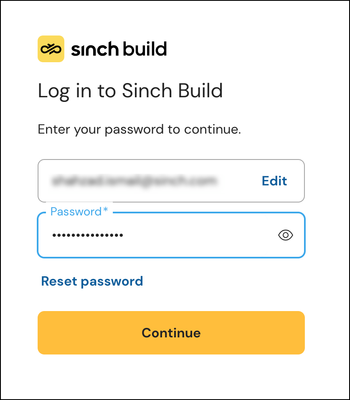
Enter your email address and your password. Click Continue.
- Sinch ID shows a prompt to create a passkey on this device:
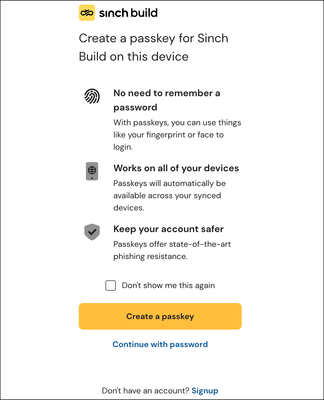
Click Create a passkey.
Note: Select the Don't show me this again checkbox if you want to stop seeing the passkey option on future sign-ins. The prompt will not appear again, but you can still enrol by signing in with your password.
- Your device's passkey dialog is displayed. Follow the on-screen steps to save the passkey with Face ID, Touch ID, your PIN, or your password manager.
- The passkey is saved and you are signed in.
After enrolment
Your passkey appears in the Sign-in & Security dashboard under Passkey. On your next sign-in, select the Continue with a passkey option on the login screen instead of your password.
Related Articles
