A Business Profile which is part of the Compliance Center is a single location for US Business Profile registration information. Once you create a Business profile the information can be reused, for example, when creating a campaign or when registering your 10DLC brands, ultimately saving you from re-entering the same information for future US messaging products.
This step by step guide will walk you through creating a business profile, which you can immediately use to register your 10DLC brands.
To create a business profile, take the following steps:
- Log in to the Sinch Build Dashboard.
- Select the Profiles option from the COMPLIANCE CENTER -> Business profiles menu in the left panel. The Business Profiles page is displayed:

Click + Create profile.
- The Create a new profile dialog is displayed:

Enter a name for your profile. Click Next step.
- The About your business form is displayed:

Enter the information requested on this form:
| Legal company name |
The official name of the business as it is registered with the government. (i.e What shows up on all legal papers/tax documentation)
|
| Vertical type |
The specific niche or market your business serves. (i.e. If your business category is 'Finance', your vertical might be 'Consumer Banking') |
| Entity type |
The type of legal entity your business is. (i.e. Is it a public company, private company, non-profit, or government entity?) |
| Country of registration |
The country where your business is officially registered. (i.e. Where you filed the paperwork to start your business) |
| State of registration |
|
| Website URL |
|
| Federal Tax ID |
|
| Tax Country |
|
Click Next step.
- The Business address form is displayed:
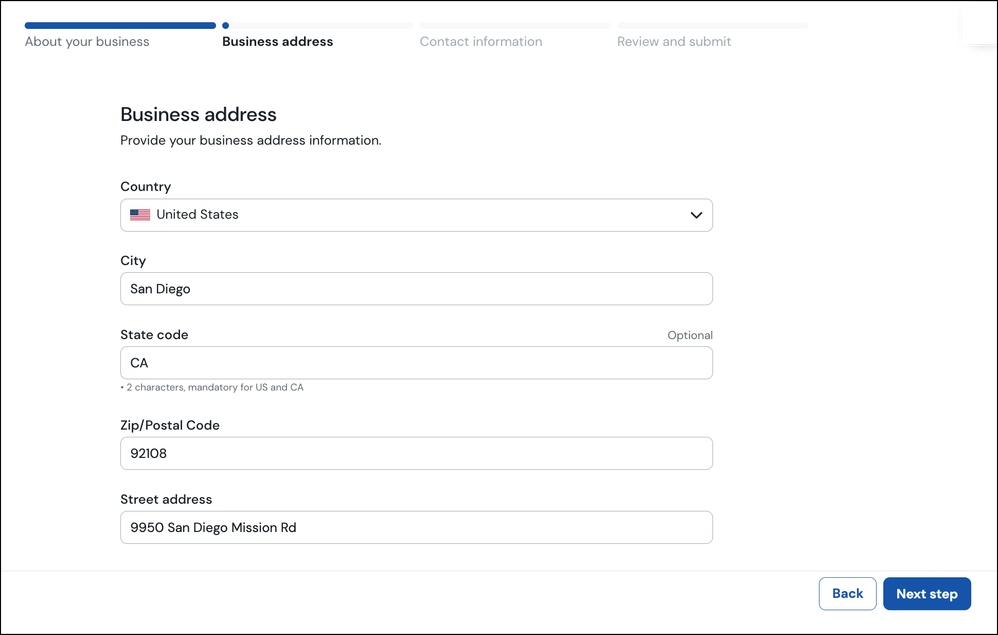
Enter your business address details. Click Next step.
- The Contact information form is displayed:
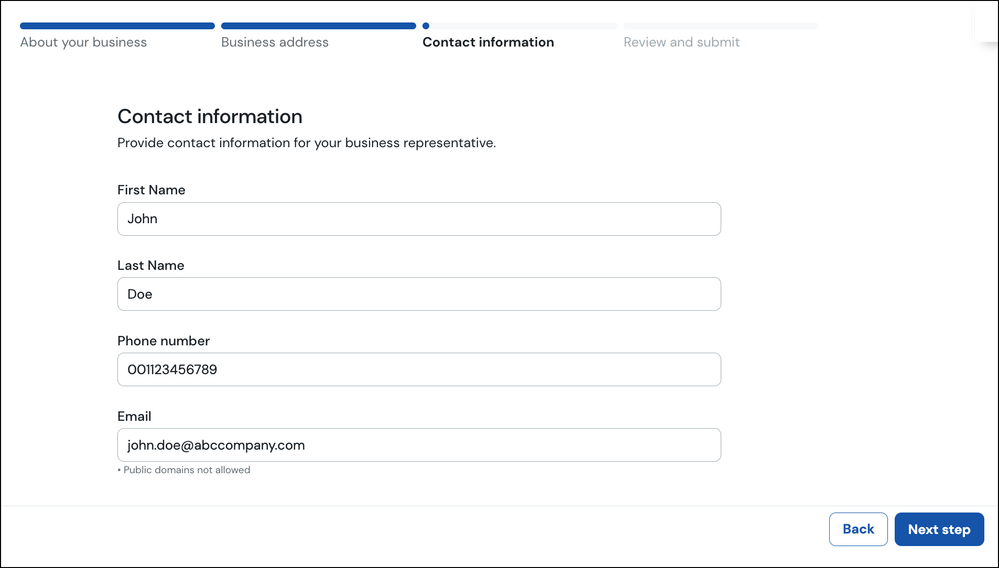
Enter your contact information for the person you want to be associated with this business profile.
Click Next step.
- The Review and submit form is displayed:
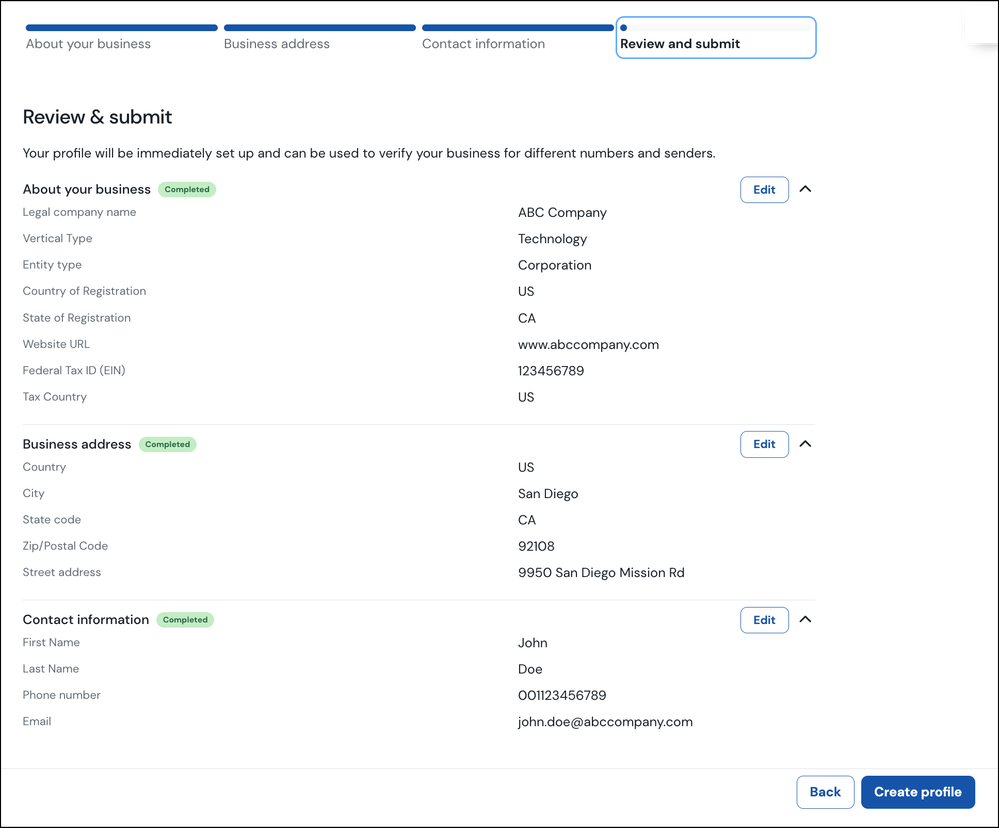
This page summarises the information you have entered. You can click the Edit button corresponding to any of the sections to edit this information.
Once you are satisfied with the information you have entered, click Create profile.
- You business profile will be created:

The next step is to verify your business. Refer to the How to verify your business in the Compliance Center? article to learn more.
