SMS authentication sends a one-time code to your phone each time you need to verify your identity.
To set up SMS authentication, take the following steps:
- Sign in to Sinch ID and select the Sign-in & Security option form the left menu:
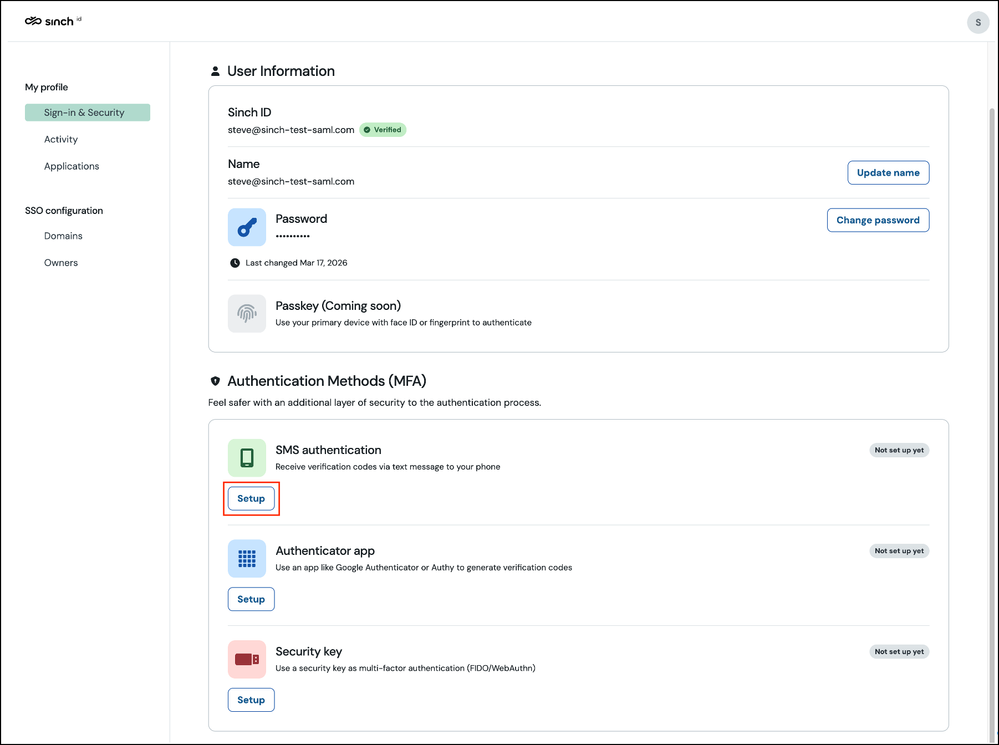
In the Authentication Methods (MFA) section, under SMS authentication, click Setup.
- The Secure Your Account dialog box is displayed:
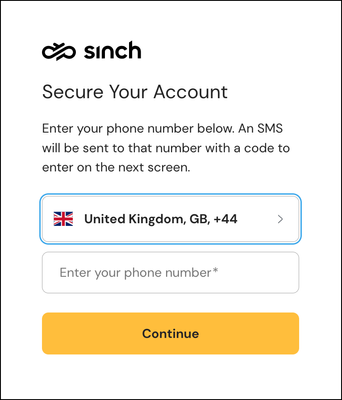
Select your country code, enter your phone number, and click Continue. Sinch will send a 6-digit security code to your phone.
- TheVerify your identity dialog is displayed:
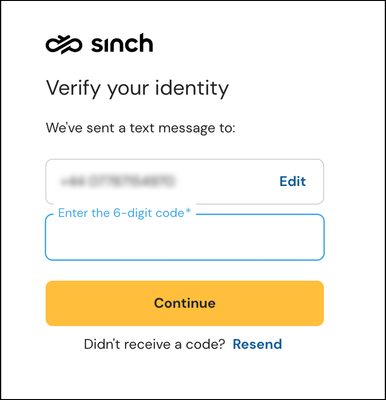
Enter the 6-digit code. Click Continue.
- If this is your first MFA method, Sinch ID shows a recovery code:
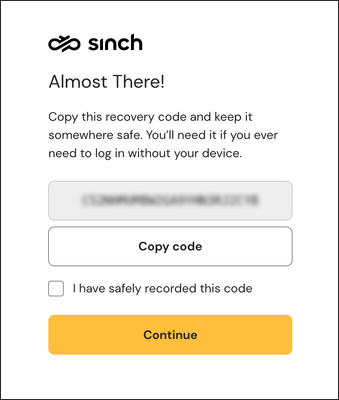
Copy or write it down and store it somewhere safe. You will need it if you lose access to all of your MFA methods.
Note: The recovery code only appears when you enrol your first MFA method. If you already have another method enabled, this step is skipped.
A confirmation message is displayed informing you that the setup is complete. You can safely close this tab.
