An authenticator app generates time-based one-time codes on your device. Popular choices include Google Authenticator, Microsoft Authenticator, and 1Password.
To set up an authenticator app, take the following steps:
- Sign in to Sinch ID and go to Sign-in & Security.
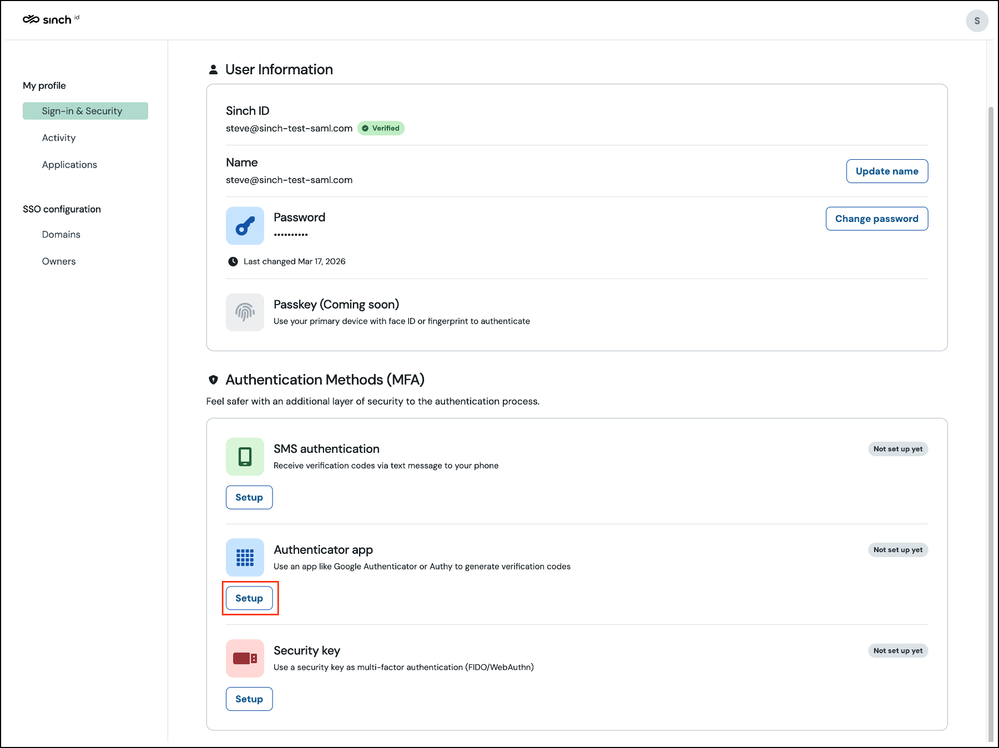
In the Authentication Methods (MFA) section, under Authenticator app, click Setup.
- A unique QR code is displayed:
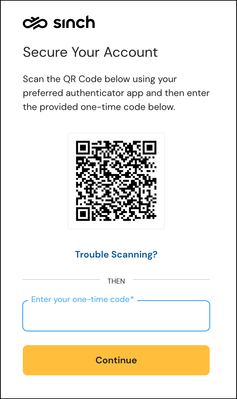
Open your authenticator app and scan it.
Tip: If you cannot scan the QR code, click Trouble Scanning?to reveal a manual entry key you can type into your app.
Enter the 6-digit code from your authenticator app and click Continue.
- If this is your first MFA method, Sinch ID shows a recovery code:
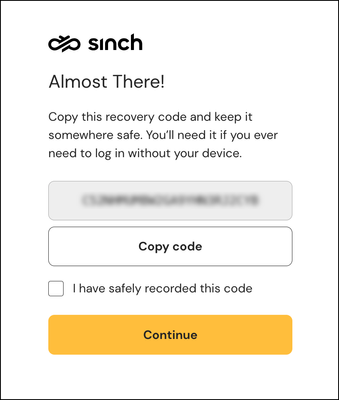
Copy or write it down and store it somewhere safe.
Note: The recovery code only appears when you enrol your first MFA method. If you already have another method enabled, this step is skipped.
A confirmation message is displayed informing you that the setup is complete. You can safely close this tab.
