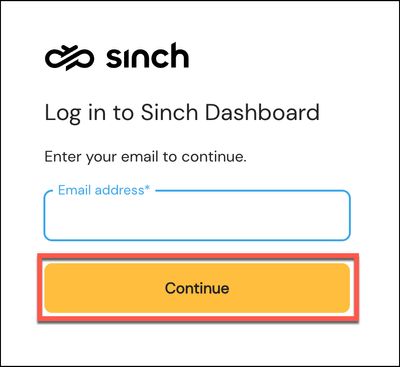
Please enter your email address as normal. Click CONTINUE.
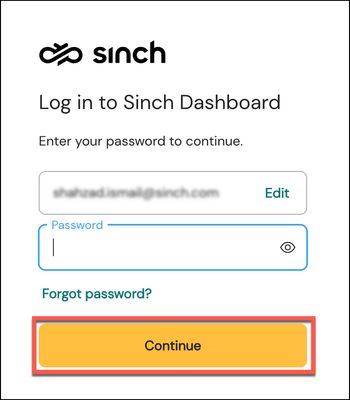
Your email address will be verified:
Enter your existing password. It's the same one you've been using to login to the Sinch Dashboard. In other words, although the login experience is a bit different now, your login password has not changed.
Click Continue.
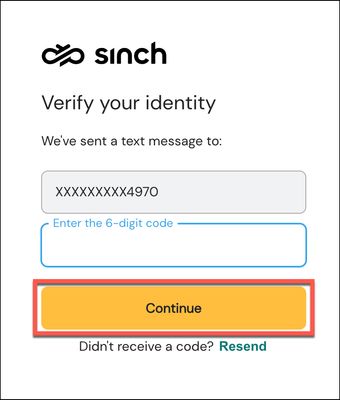
The Verify your identity dialog is displayed:
Sinch uses Two Factor Authentication (2FA) for added security. A text message will be sent to your verified phone number screen containing your 2FA token code.
Enter the 6-digit token and click Continue.
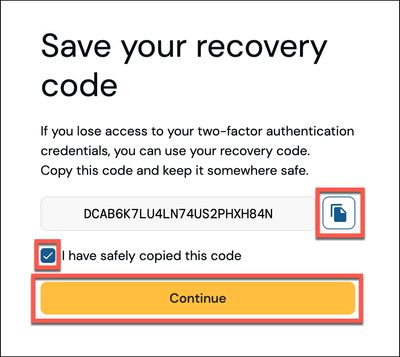
The first time you log using the new SInch ID, your recovery code is displayed:
Your recovery code is important as it allows you to verify your account if you lose your 2FA credentials or your 2FA phone. Please copy your recovery code and store it somewhere safe.
Click the check box to confirm you have copied the code and click Continue.
Note:The recovery code is only displayed the first time you log into the Sinch Build Dashboard using the new SInch ID.
You'll now be logged in and taken to the Sinch Build Dashboard welcome page.