Only admins have the permissions to connect channels in Sinch Engage.
Before connecting Facebook, you must have:
To connect Facebook Messenger to Sinch Engage:
- Go to Settings > Project > Channels.
- Go to the Available channels section
- Click on Connect under the Facebook section.
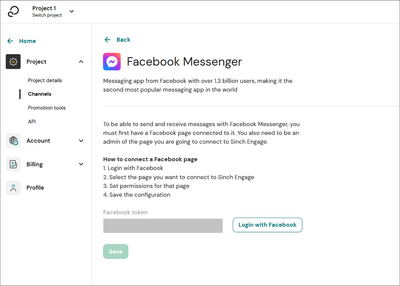
- Click the Login with Facebook button.
- Log in with your Facebook credentials and complete the integration process in the Meta popup:
- If you have several Facebook business accounts, select the one you want to use.
- Select the page you want to connect to Sinch Engage.
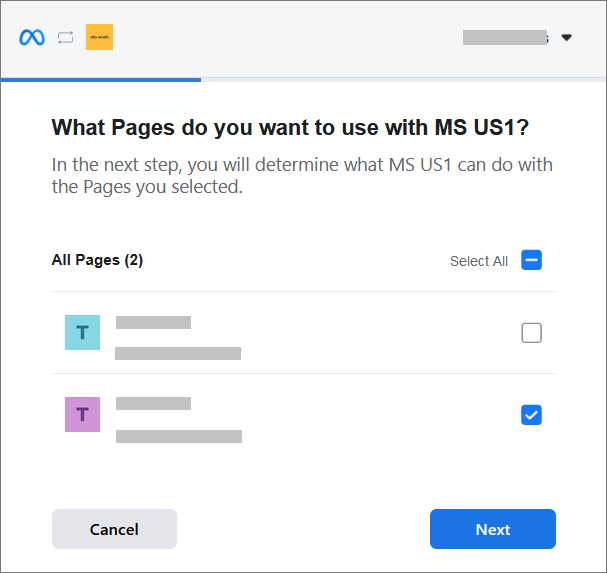
- Set permissions for that page.
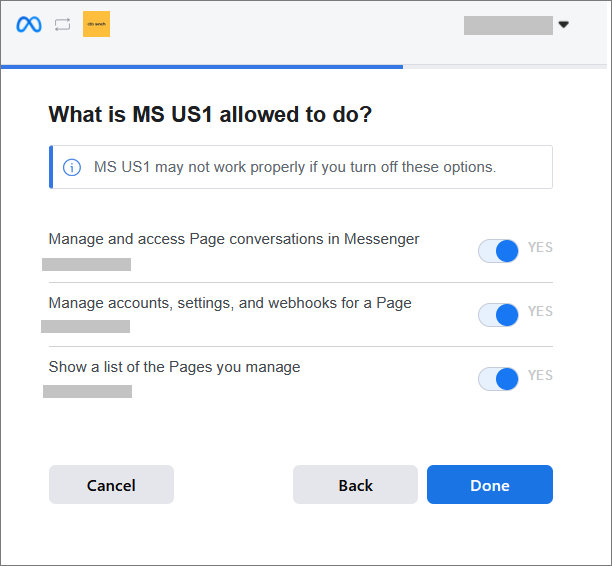
When complete, the pop up closes and you can see your Facebook token.
- Click Save to connect your channel. The channel state turns to Pending.
After a maximum delay of 5 minutes your channel status changes to:- Active if the connection was successful.
- Failing if an error occurred. You can see a description of the error.
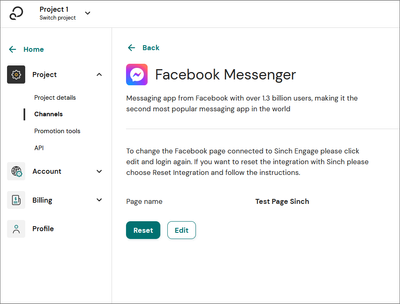
When connected, the Facebook section shows the name of your page.
Connect several Facebook pages
If you have more than one page in your Meta business account and want to connect them to multiple projects:
- Connect your first page as instructed above.
- To connect your other pages, follow steps 1-3 above.
- Log in with your Facebook credentials and complete the integration process in the Meta popup:
- Select Edit Settings in the Meta popup.
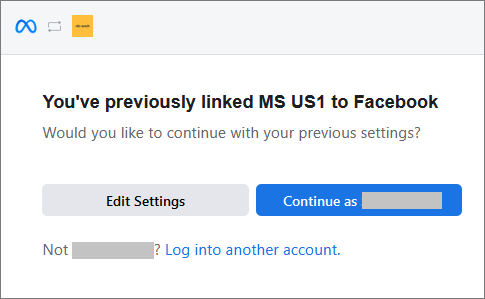
- Select the additional page you want to connect without deselecting the previous one. Only select one additional page at a time.
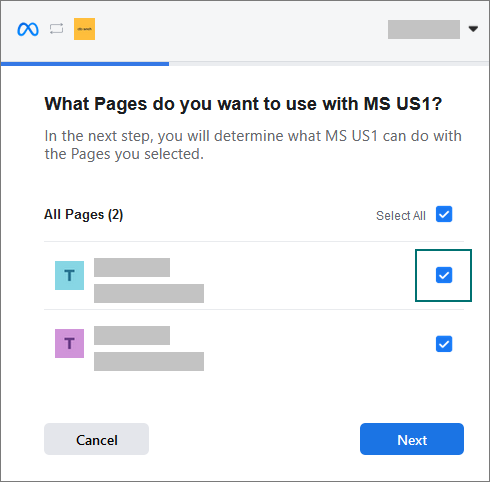
- Jump back to step 4c above and finish the setup.
- Repeat this process for each page you want to connect.


