A Business Profile or brand, part of the Compliance Center, requires verification once its created. This process includes more in depth company information to verify that the business and the messaging traffic they will be sending is legitimate. This stage of the Business Profile or Brand creation allows for a brand to confirm the US messaging product that they would like to start using (10DLC, Short Code, or RCS), and finalize verifying their brand with Sinch all in one quick form.
Once verified, this brand is able to be utilized again and again with different US messaging products at any time, saving you from re-entering the same information for future US messaging products.
This step by step guide walks you through verifying your business profile, allowing you to choose which product you want to get started with: 10DLC, Short Code, or RCS.
To verify a business profile or brand, take the following steps:
- Log in to the Sinch Build Dashboard.
- Select the Profiles & brands option from the COMPLIANCE CENTER -> Profiles & Brands menu in the left panel. The Profiles and brands page is displayed:
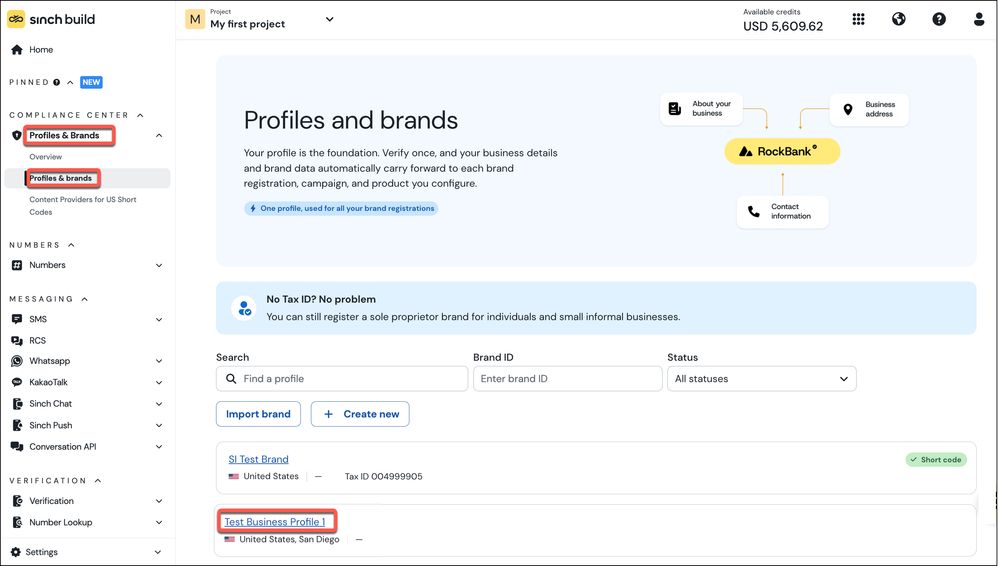
Select the Business Profile or Brand you want to verify, in this case "Test Business Profile 1".
- The Business Profile page for Test Business Profile 1 is displayed:
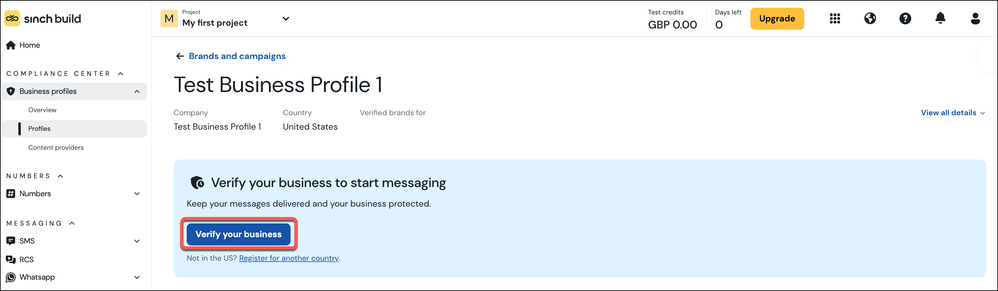
Click Verify your business.
- The Select number or sender type step is displayed which shows you the three available number/sender types: Short Code, Long Number or RCS. Depending on which of these options you select - additional options related to that number/sender type are displayed. For example, if you select Short Code:
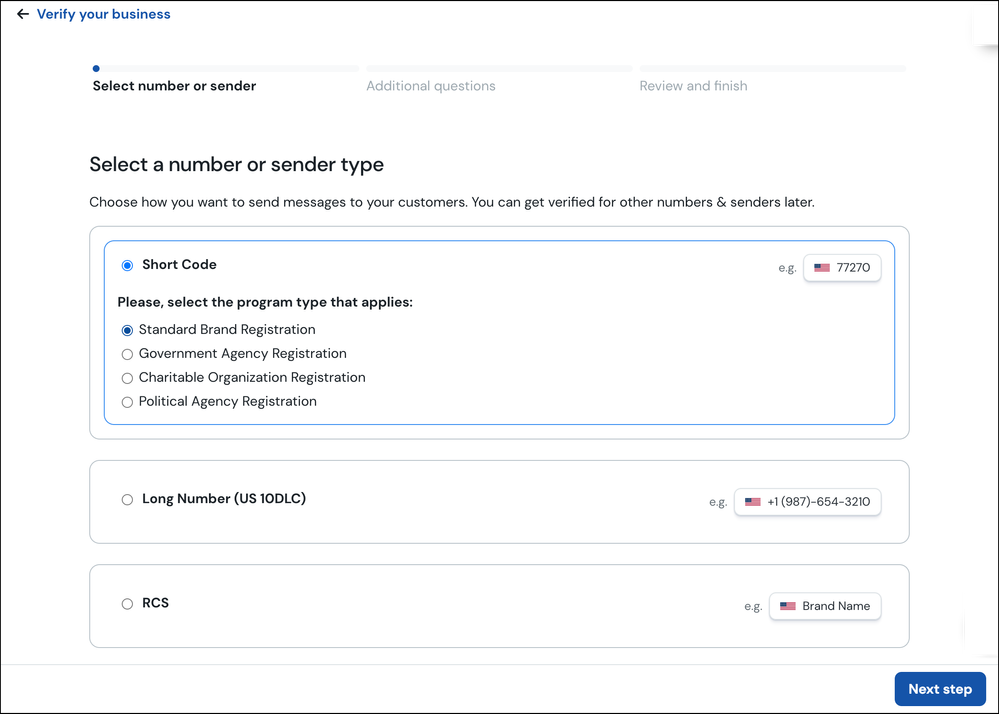
Select the number/sender type you want to use to send messages. Click Next step.
- The Additional questions step is displayed:
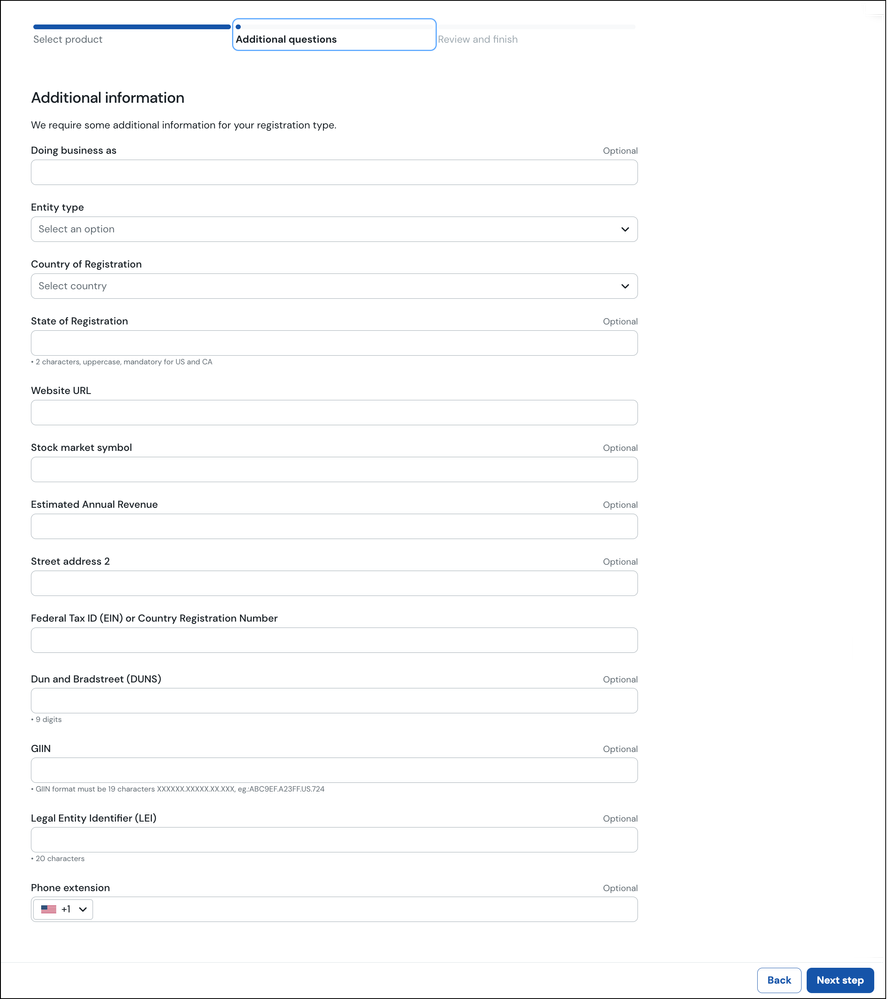
The information requested on this form depends on the number/sender type selected in step 4. Enter the information requested on this form. Click Next step.
- The Review & submit step is displayed:
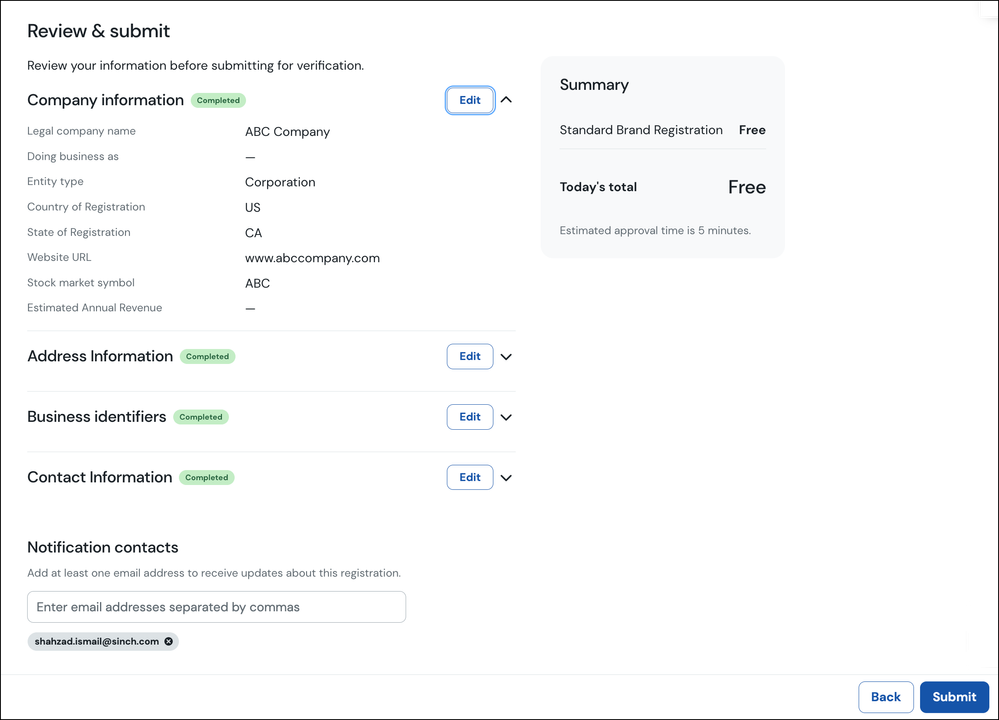
This shows you a summary of the information entered and any associated fees. If all the information is accurate, click Submit.
The profile page for the Business Profile is displayed showing you the status of your request:
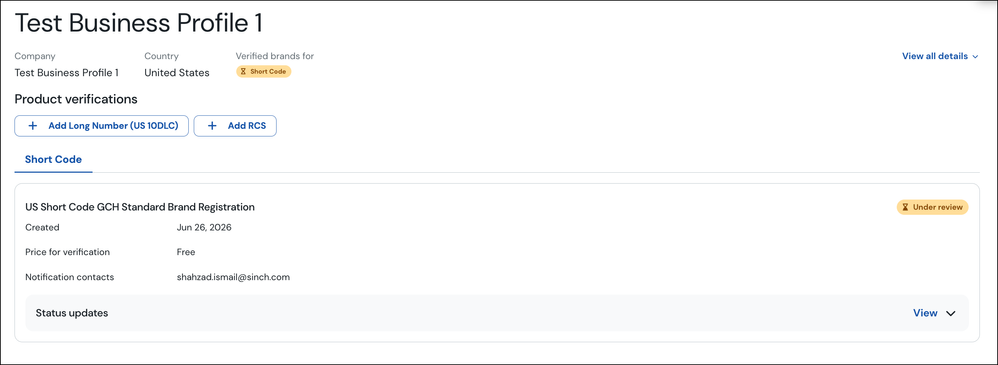
The verification process can take up to XX but can be as quick as a few minutes.
Once your Business profile has been verified the status will show as Verified.
With a verified Business profile, depending on the number/sender type you used, you can then buy a Short Code or register a new 10DLC Campaign.
