A Content Provider which is part of the Compliance Center is a
This step by step guide will walk you through creating a content provider.
To create a content provider, take the following steps:
- Log in to the Sinch Build Dashboard.
- Select the Content providers option from the COMPLIANCE CENTER -> Business profiles menu in the left panel. The Content providers page is displayed:
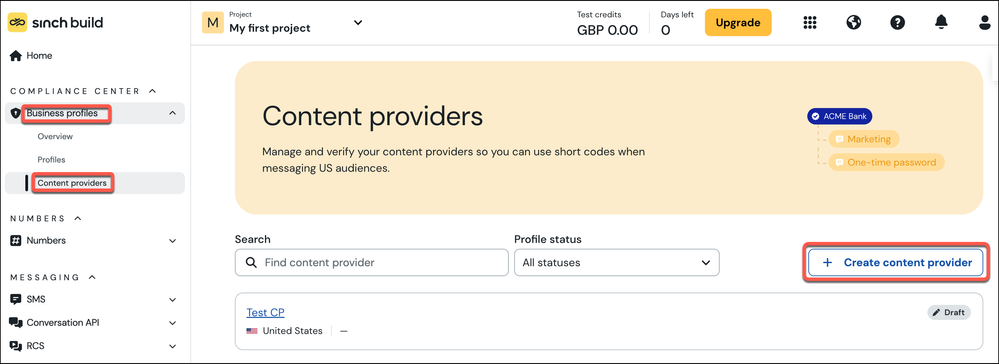
Click + Create content provider.
- The Register new content provider dialog is displayed:
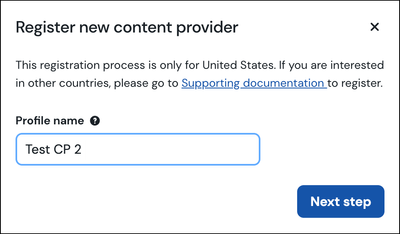
Enter a name for your content provider. Click Next step.
- The About your business page is displayed:
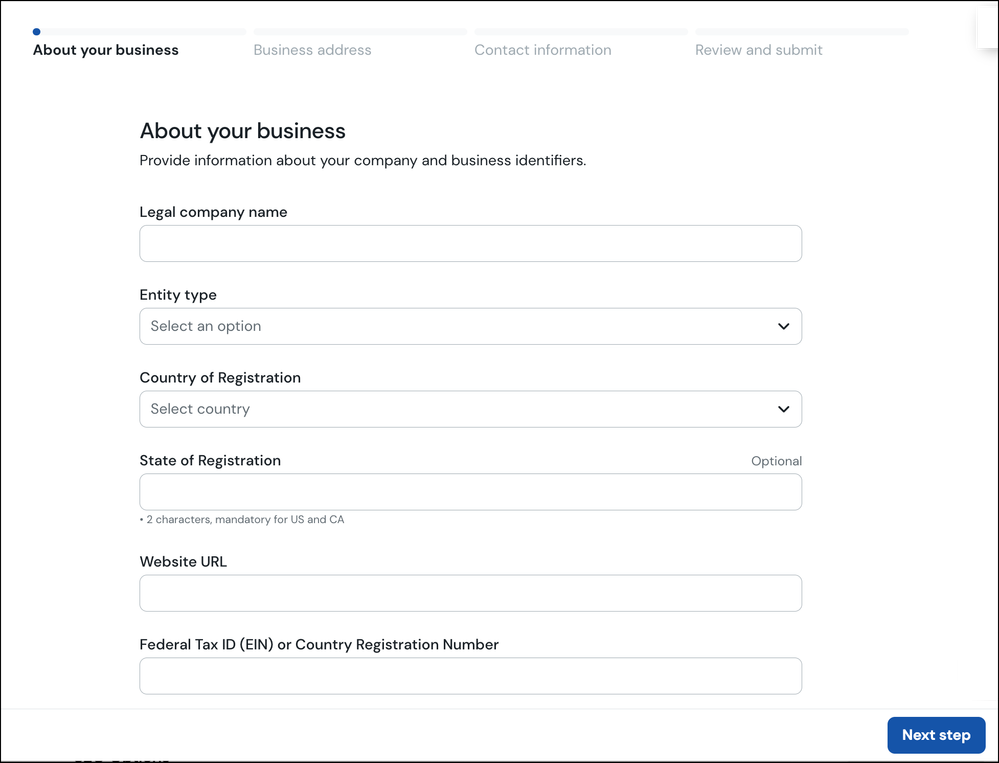
Enter the information requested. Click Next step.
- The Business address page is displayed:
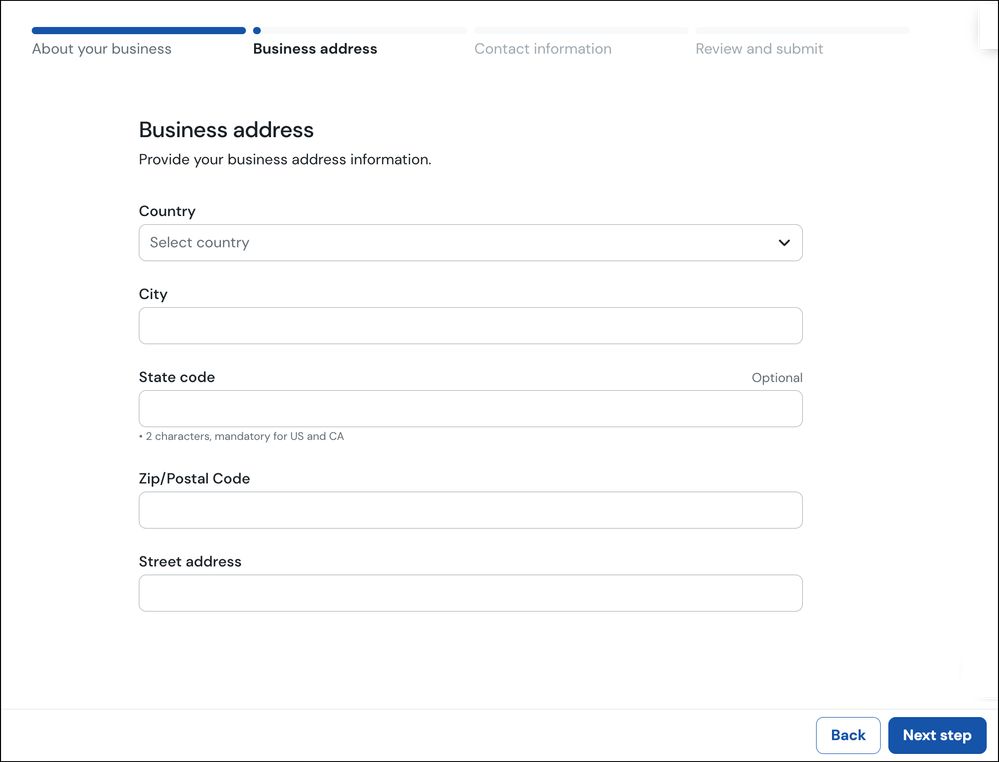
Enter your business address. Click Next step.
- The Contact information page is displayed:
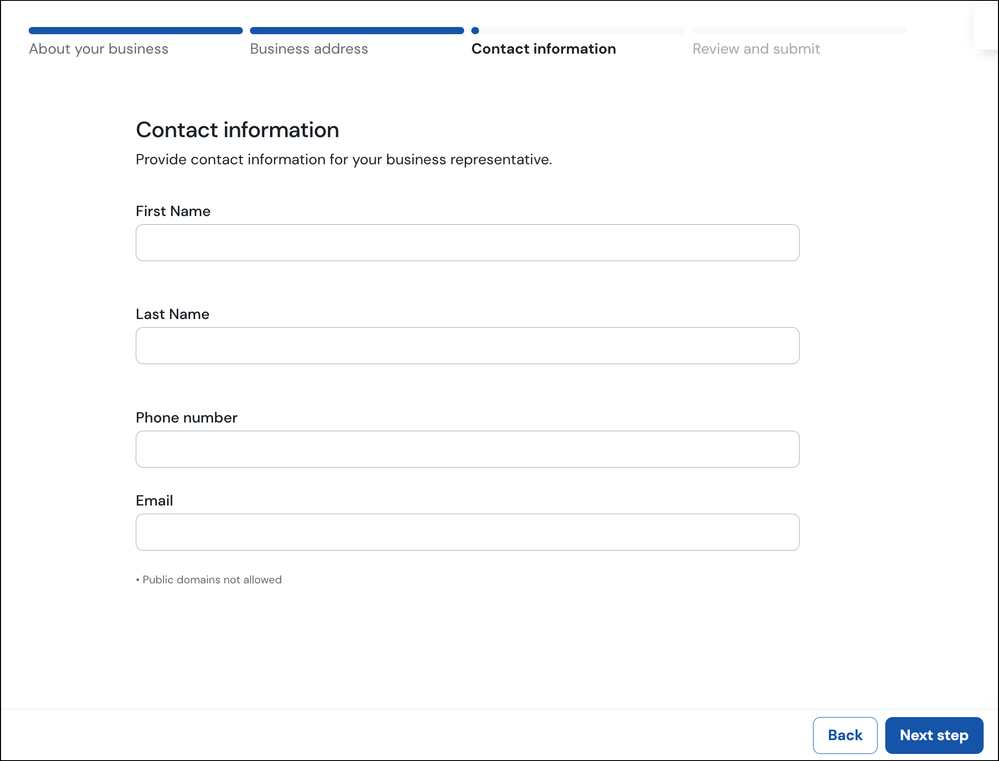
Enter your contact information. Click Next step.
- The Review and Submit page is displayed:
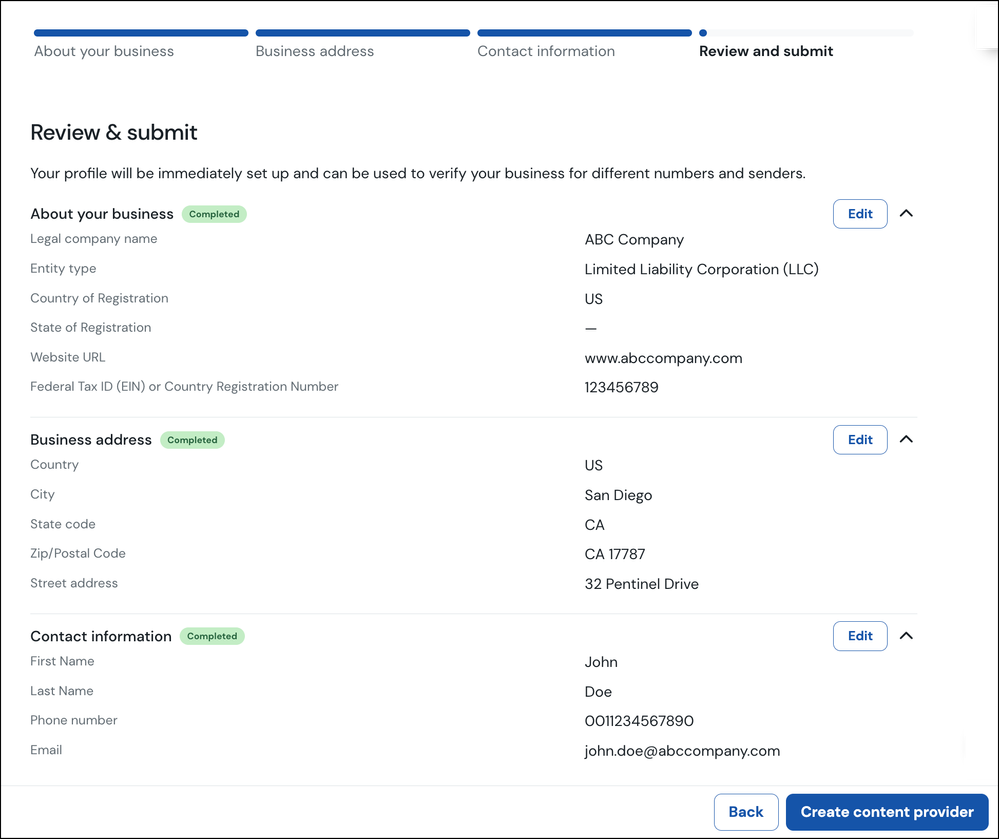
The page shows you a summary of the information you have entered thus far. If you want to make any changes click the Edit button corresponding to the section where you want to make changes.
Once you have ensure the information is correct, click Create content provider.
- The newly create Content provider is ....
