A Content Provider is the business or organization that owns the short code service, creates the message content, and manages the mobile campaign for the end user.
This step by step guide will walk you through creating a content provider.
To create a content provider, take the following steps:
- Log in to the Sinch Build Dashboard.
- Select the Content providers option from the COMPLIANCE CENTER -> Business profiles menu in the left panel. The Content providers page is displayed:
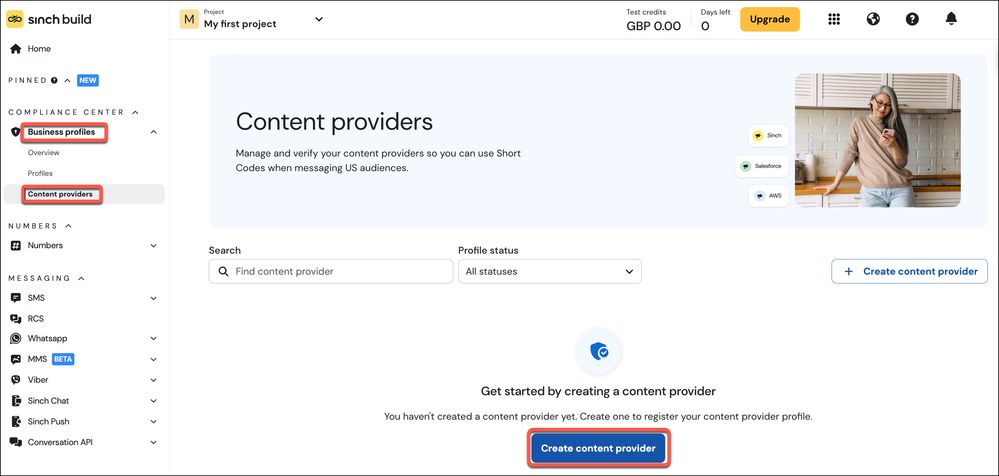
Click Create content provider.
- The Register new content provider dialog is displayed:

Enter a name for your content provider. Click Next step.
- The About your business page is displayed:
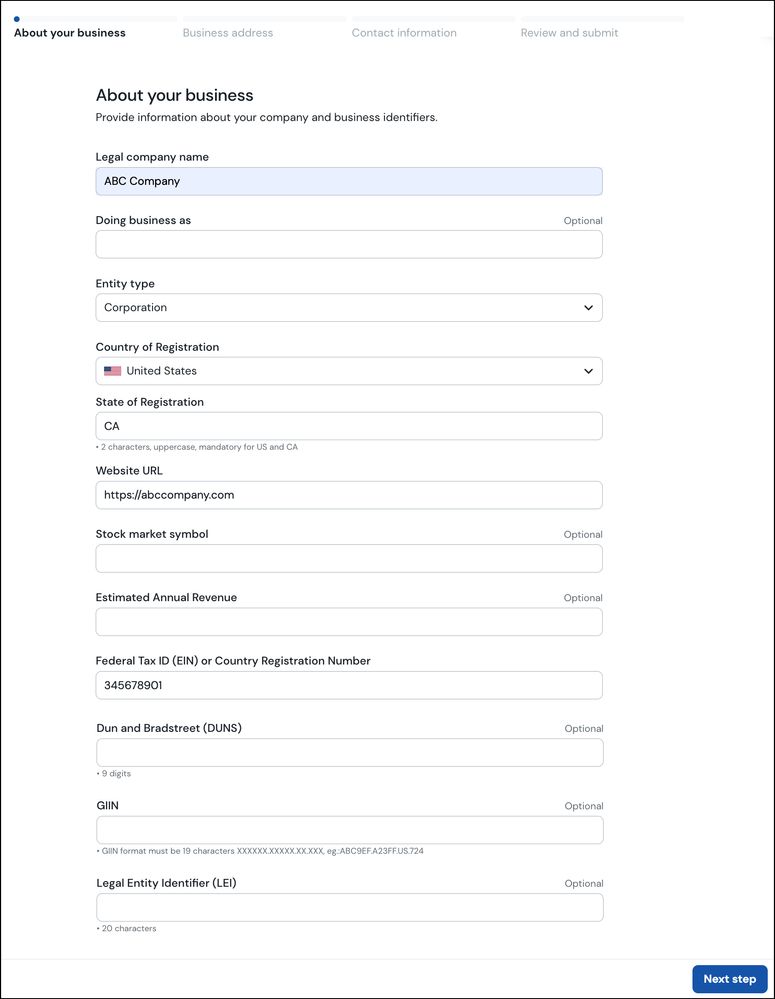
Enter the information requested. Click Next step.
- The Business address page is displayed:

Enter your business address. Click Next step.
- The Contact information page is displayed:
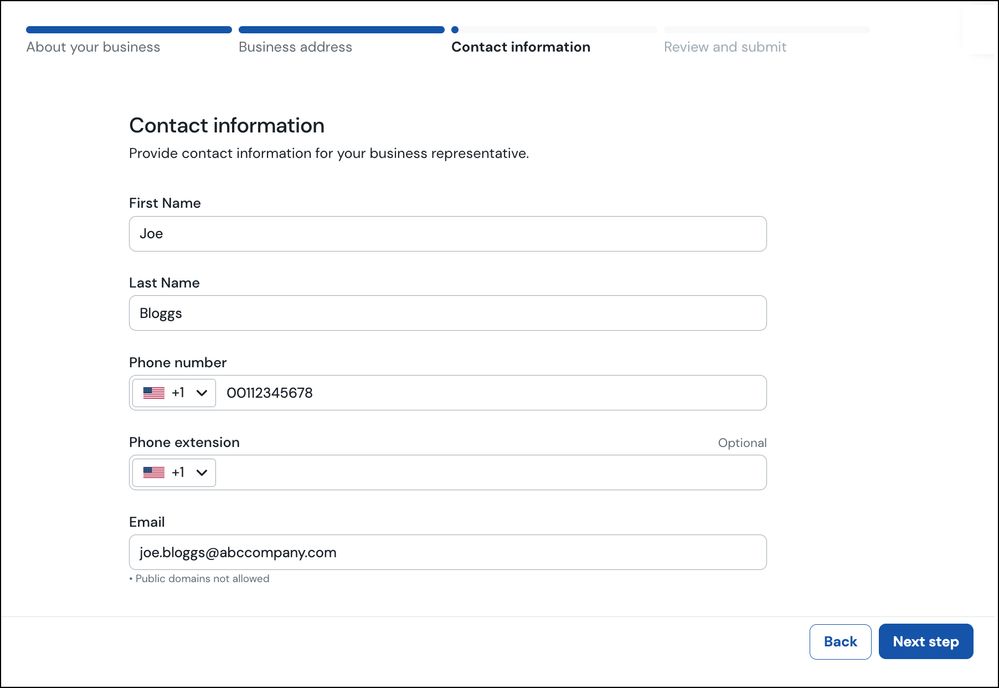
Enter your contact information. Click Next step.
- The Review and submit page is displayed:
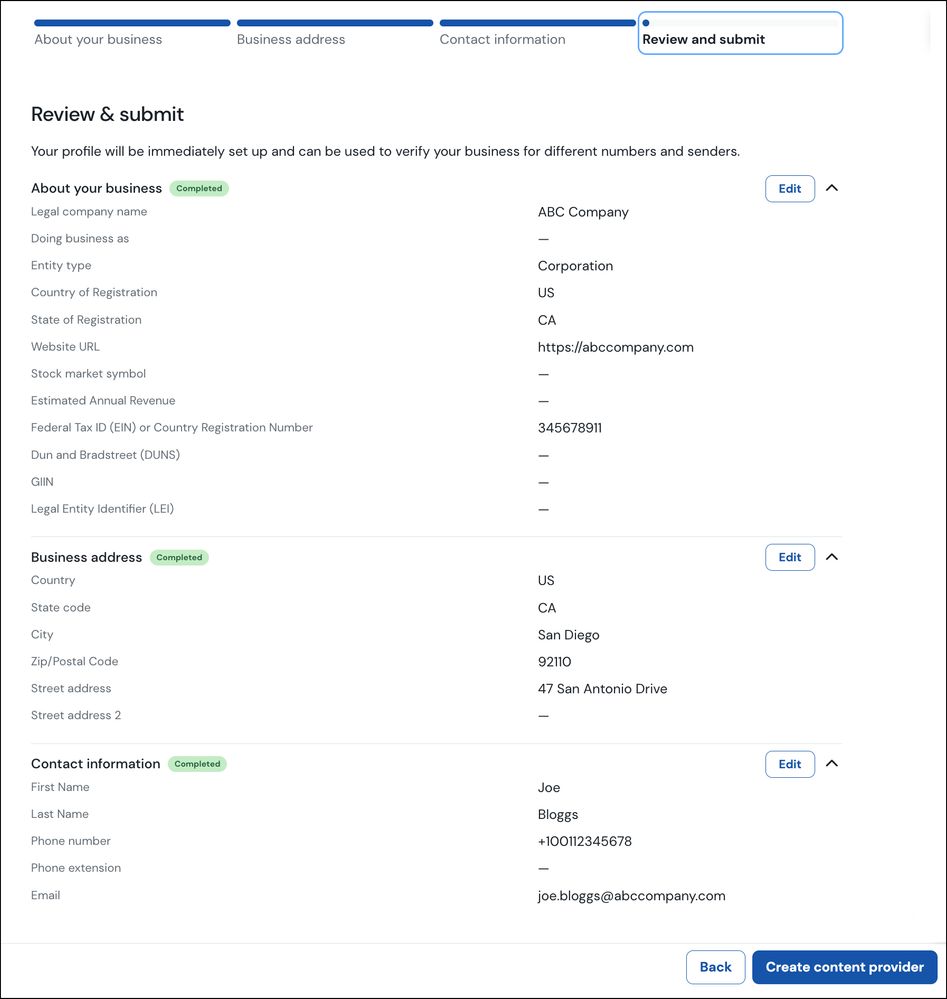
The page shows you a summary of the information you have entered thus far. If you want to make any changes click the Edit button corresponding to the section where you want to make changes.
Once you have ensure the information is correct, click Create content provider.
- A verification page is displayed:
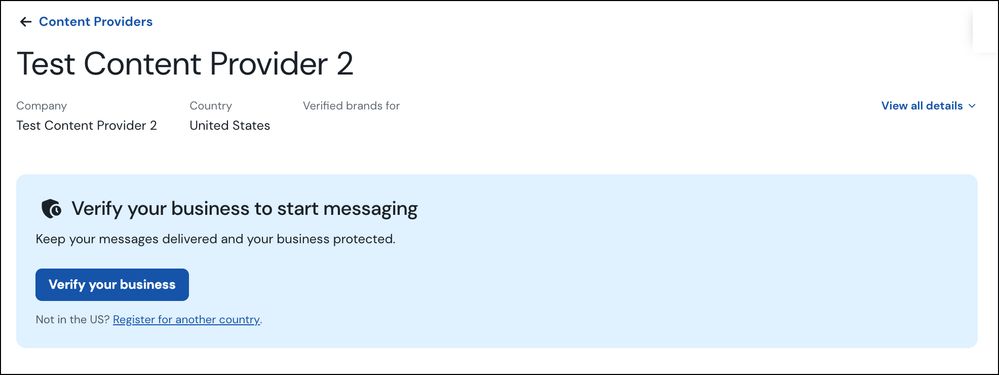
You now need to verify your Content Provider. Click Verify your business.
Verifying your Content Provider
- The Select a product page is displayed:
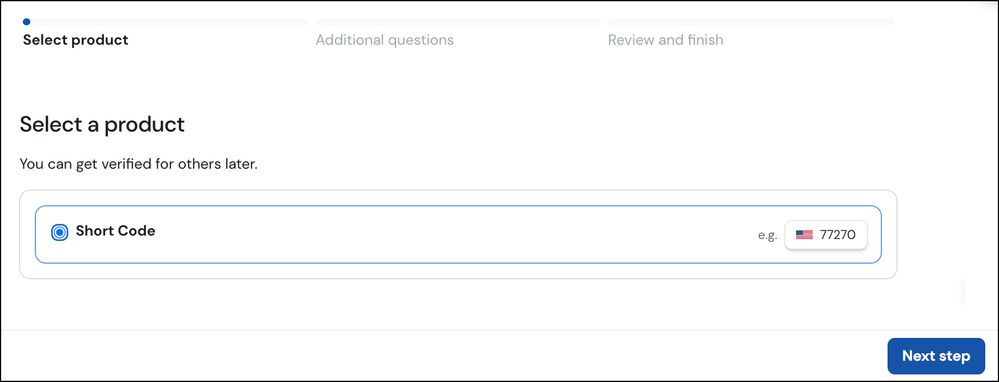
Select the product - in this case Short Code. Click Next step.
- The Additional information page is displayed:
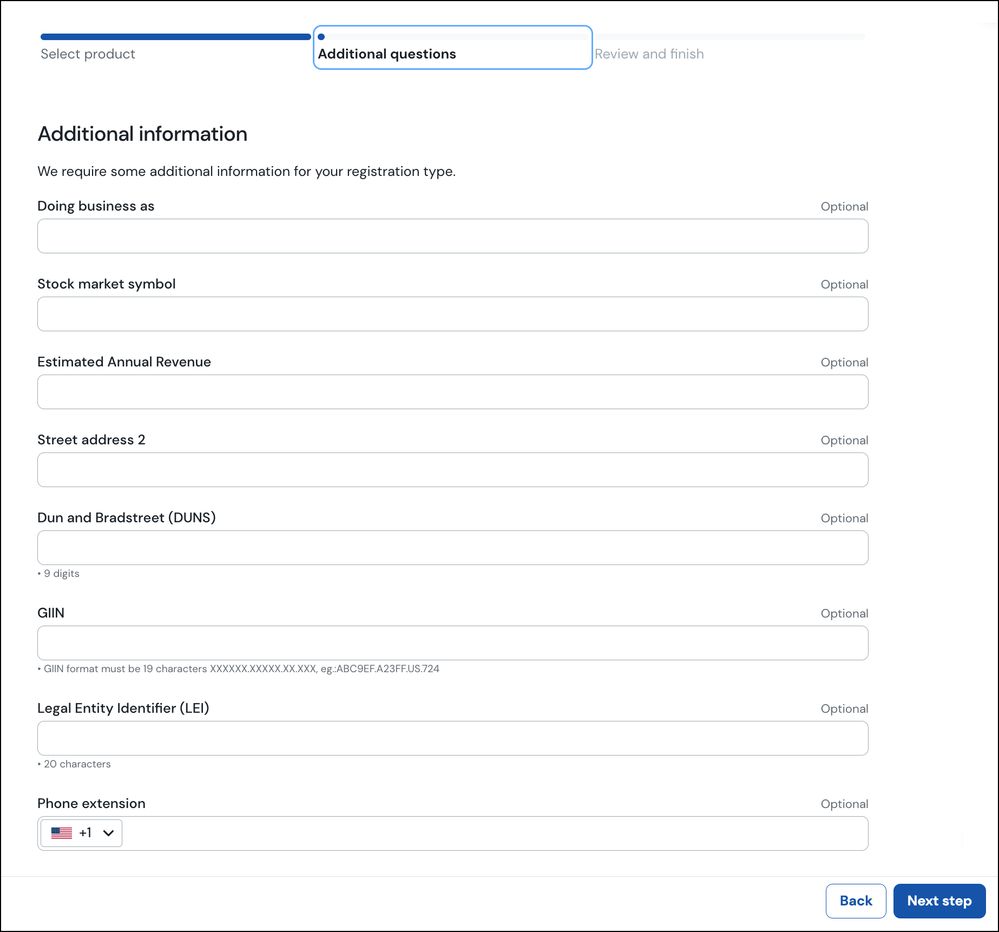
Enter any additional information as required. Click Next step.
- The Review and finish page is displayed:
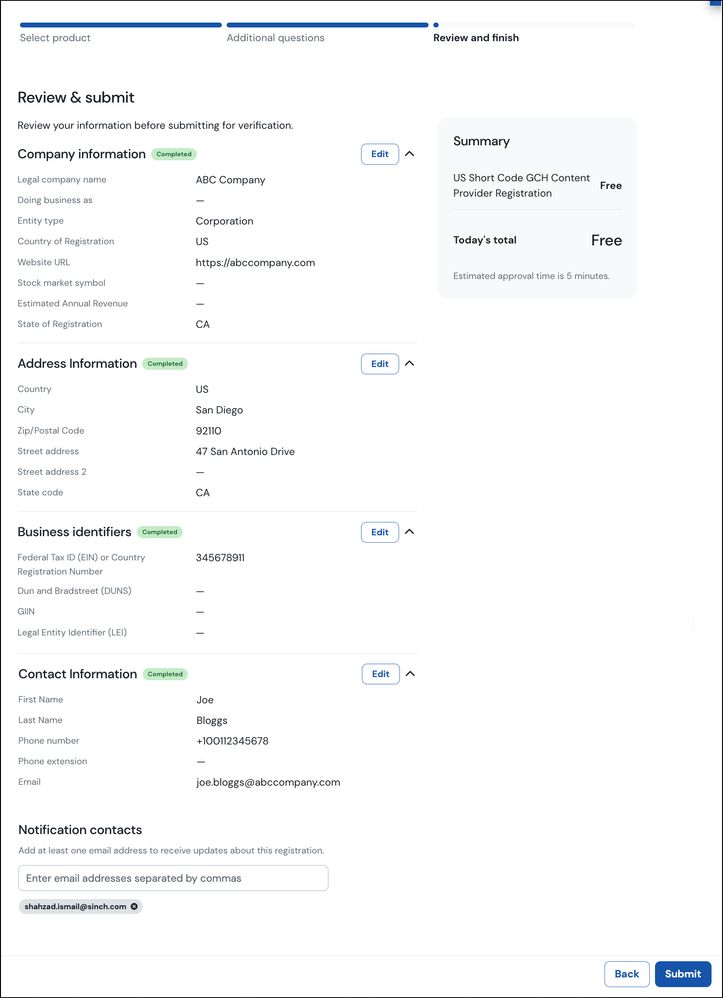
The page shows you a summary of the information you have entered thus far. If you want to make any changes click the Edit button corresponding to the section where you want to make changes.
Once you have ensure the information is correct, click Submit.
- The details page for your Content provider is displayed. The status will initially show as Under review but once the verification process is completed this will change to Verified:
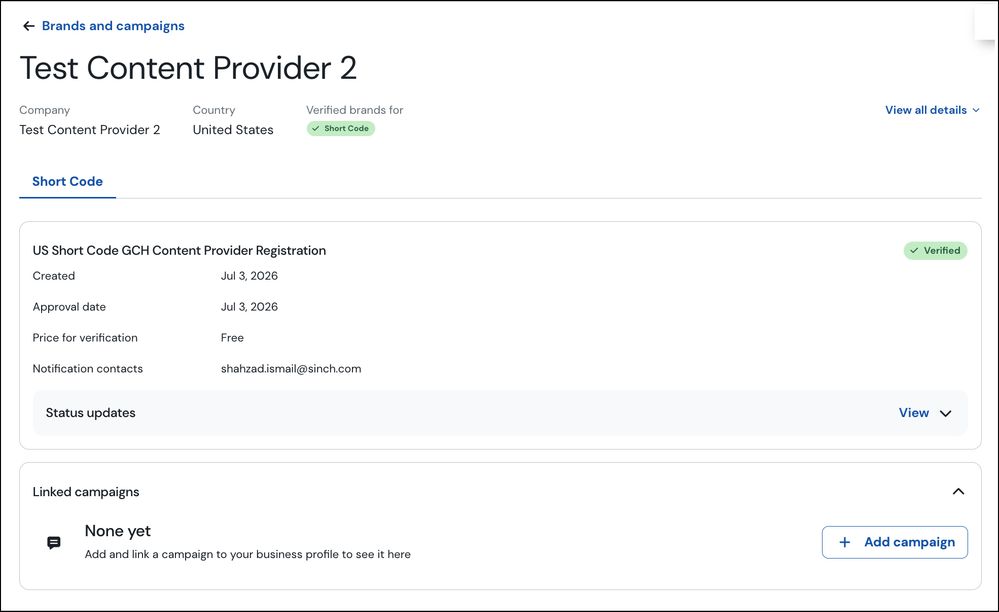
Note: The verification process can take from 1-2 business days but can be quicker. However, for some entities, for example, International brands the verification process may take longer as the vetting party may need to perform manual reviews.
